
SKY-001 Studio / Text to CAD
Text to CAD. Inspect the geometry.
Use the AI CAD generator for dimensioned parts, then inspect the geometry and export STEP or STL.
A brief with measurable dimensions
This text explains the sample design. It is not a recorded AI generation or a guarantee that an identical prompt will produce identical output.
How to write a text-to-CAD design briefMounting plate: inspect the actual files
Deterministic geometry-kernel example
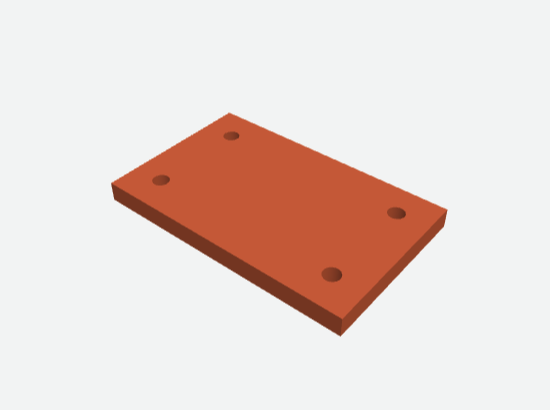
Drag to orbit and scroll to zoom, or use the view buttons. This only opens the static sample; it does not submit a generation or spend credits.
- Nominal dimensions
- 80 × 50 × 6 mm
- Hole specification
- 4 × Ø5 mm, through
- Design coordinates
- Millimetres, Z-up
The downloadable sample is built from an explicit schema v1 design by the geometry kernel. It demonstrates the file workflow, not AI prompt accuracy.
Download the sample
Use the verification JSON alongside the source design and exported files. A rendered preview alone does not establish dimensions, topology or manufacturing suitability.
The design uses millimetres and Z-up. The GLB viewer uses metres and Y-up; this is an export coordinate conversion, not a different part. Confirm millimetres when importing the unitless STL.
A bounded CAD vocabulary
Start with mechanical parts you can describe as positioned solids and explicit add or cut operations.
Boxes with explicit dimensions
Define length, width and height, then position the part and each operation with coordinates.
Cylinders along the Z axis
Specify radius and height. Subtract a positioned cylinder to describe a hole; make the cut extend through the material.
Straight polygon extrusions
Define a planar polygon and extrusion height for a straight-sided profile.
Ordered add and cut operations
Combine or subtract supported primitives. The order and positions of operations are part of the saved design.
From a brief to a version you can inspect
Specify the part
State units, dimensions, feature positions and the intended changes. Sign in to Studio and review the displayed credit cost before submitting.
Review and edit
Inspect the generated parameters and geometry. Edit supported dimensions or the schema v1 design JSON. Use object locks and edit scope when a feature must stay unchanged.
Build and export a version
A successful build saves a new immutable version. Review its checks and download STEP, STL, GLB or design JSON. Keep the earlier version when comparing changes.
STEP carries CAD geometry, STL carries a triangle mesh, GLB supports model viewing, and design JSON preserves this application’s structured operations. STEP export does not promise another CAD tool’s native feature history. Studio does not export 3MF.
Actual generation requires signing in and sufficient credits. The server charges a submitted build; failed or cancelled charged jobs enter refund reconciliation. A refund can remain pending until reconciliation completes, with the billing outcome recorded in task history.
Viewing or downloading this public sample does not create a project, submit a build or consume credits.